Haven't installed OpenClaw yet? Click here for one-line install commands
curl -fsSL https://openclaw.ai/install.sh | bashiwr -useb https://openclaw.ai/install.ps1 | iexcurl -fsSL https://openclaw.ai/install.cmd -o install.cmd && install.cmd && del install.cmd- Through its four-layer architecture's Channel layer, OpenClaw natively supports 23 messaging platforms, enabling enterprises to deploy AI assistants without altering existing workflows.
- Notion integration via the official API and MCP tools enables automated enterprise knowledge management queries, automatic page generation, and cross-database synchronization, significantly reducing the manual burden of knowledge management.
- Microsoft Teams Bot deployment requires Azure Bot Service and a Teams App Manifest, supporting Adaptive Cards interaction and intelligent meeting summaries.
- Slack integration focuses on Slash Commands and Message Actions, allowing development teams to invoke OpenClaw agents for complex tasks without switching tools.
- The key to unified cross-platform management lies in Shared Context and message routing strategies, ensuring the same AI assistant delivers consistent response quality across different channels.
- Enterprise deployments must follow the Least Privilege principle and enable audit logging and data residency controls to comply with GDPR, SOC 2, and other regulatory requirements.
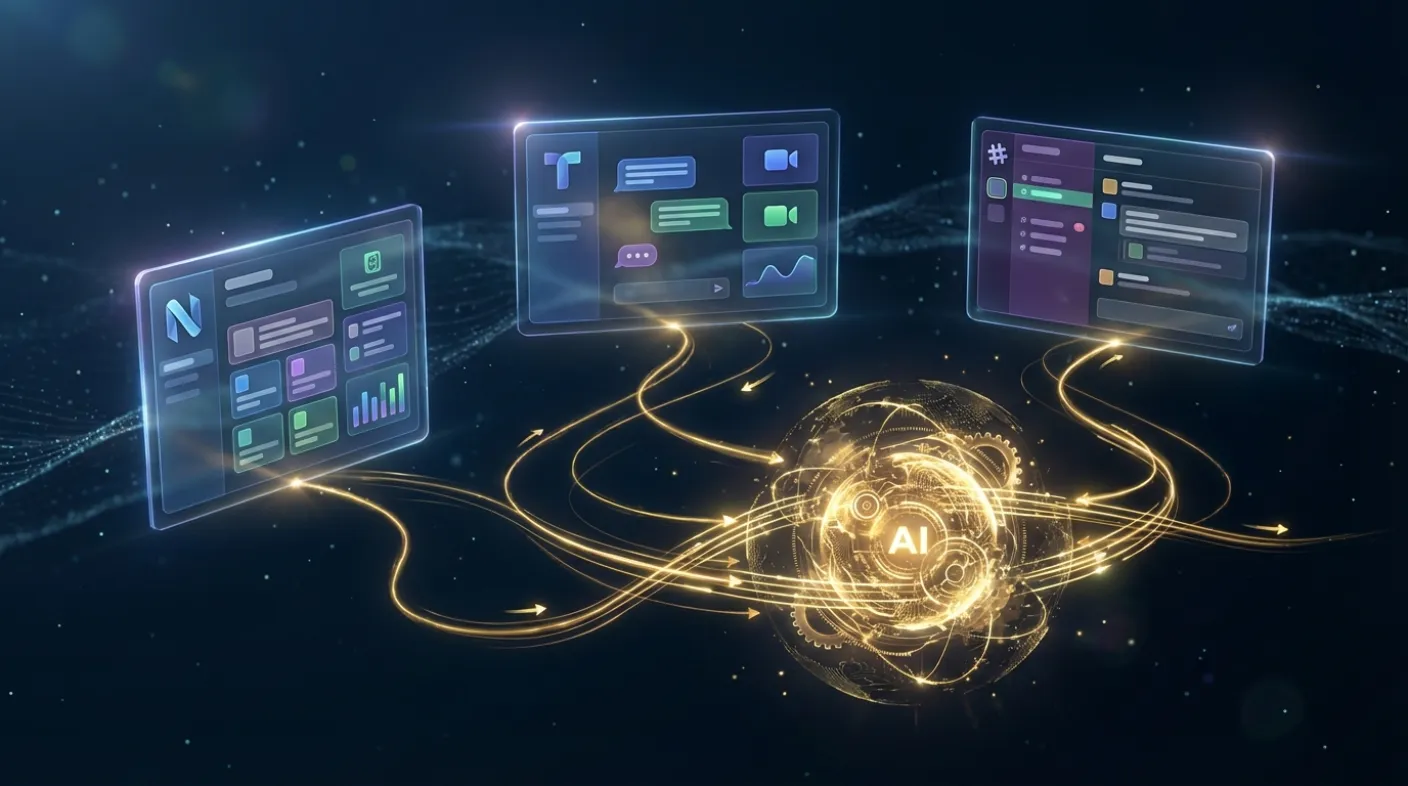
In the 2026 enterprise environment, digital tool fragmentation has become one of the biggest obstacles to productivity.[6] Knowledge lives in Notion, communication happens in Teams or Slack, and AI assistants are often yet another separate tool — the "context switching" between these three systems consumes hours of attention from engineers and analysts every day. OpenClaw's design philosophy aims to break down this barrier: letting AI assistants live inside the tools people already use, rather than requiring people to open another window for AI.
This guide takes a hands-on approach, fully breaking down the integration process for OpenClaw with Notion, Microsoft Teams, and Slack — three major enterprise platforms. From API key creation, MCP configuration, and Channel setup, to cross-platform workflow design and security considerations, every step includes ready-to-use configuration examples. Whether you want to build enterprise knowledge base automation with OpenClaw, deploy an intelligent Teams bot, or turn a Slack channel into an AI command center, this article provides the complete knowledge framework you need.
1. Core Challenges of Enterprise AI Integration
1.1 Tool Fragmentation and Context Loss
According to McKinsey's 2025 survey, enterprise knowledge workers use an average of 9.4 different digital tools per day and spend 28% of their working hours switching between tools and re-entering the same information.[7] This fragmentation causes more than just efficiency loss — it creates "context loss." When you copy background information from Notion, paste it into a Teams conversation, and then relay it to an AI assistant, each transfer loses the original semantic connections and version context.
Traditional enterprise AI deployment strategies are typically "centralized" — building a unified AI portal and requiring all employees to switch to the new platform. Adoption rates for this approach are typically dismal because it violates human path dependency. People won't change their work habits for AI; AI must integrate into existing work habits.
1.2 Data Silos and Knowledge Management Challenges
Core enterprise knowledge is typically scattered across three types of systems: document systems (Notion, Confluence, SharePoint), communication systems (Teams, Slack, Email), and task systems (Jira, Asana, Linear). These three systems rarely interconnect, resulting in:
- Duplicate creation: The same SOP exists in Notion, an older version in a Teams channel, and an even older version pinned in Slack.
- Search failure: Employees can't find the correct version of a document and resort to asking colleagues directly, creating unnecessary interruptions.
- Knowledge loss: When employees leave, tacit knowledge stored in communication systems disappears with them.
OpenClaw's integration strategy addresses these three pain points: using Notion as the knowledge source and Teams/Slack as the AI assistant's entry points, letting AI access the latest knowledge in real time and automatically distill important conversations back into the knowledge base.
1.3 Technical Barriers to Enterprise Integration
Before OpenClaw, achieving this vision required developing extensive custom integration code: handling OAuth authentication, managing API rate limits, parsing platform-specific message formats (Teams' Adaptive Cards, Slack's Block Kit), maintaining Webhook servers... this engineering work was often more complex than the AI itself.
OpenClaw encapsulates this complexity through its Channel architecture, transforming integration work from "writing code" to "filling in configuration."[1] Next, we'll first understand this architecture, then break down the specific integration details for each platform.
2. OpenClaw Channel Architecture & Enterprise Integration Strategy
2.1 Four-Layer Architecture Review
OpenClaw's four-layer architecture, from outermost to innermost, consists of:
- Channel Layer: The interface with each messaging platform, responsible for receiving user input and returning responses. Supports WhatsApp, Telegram, Discord, Slack, Microsoft Teams, Signal, LINE, Google Chat, and 23 platforms in total.
- Agent Layer: The core AI reasoning engine that selects tools and plans task steps based on user input.
- Tool Layer: External capabilities the Agent can invoke, including MCP tools, custom functions, and API calls.
- Memory Layer: Cross-conversation context management, including short-term conversation memory and long-term knowledge memory.
The key operational points for enterprise integration are in the combination of the Channel Layer and Tool Layer: the Channel Layer determines where the AI assistant "lives," and the Tool Layer determines what the AI assistant "can do."[10]
2.2 Integration Strategy: Channel + MCP Dual Track
OpenClaw enterprise integration has two primary modes:
Mode A: Channel Mode — Deploy OpenClaw as a native bot on a platform, with users interacting directly with the AI on that platform. Ideal for embedding AI assistants into existing communication workflows.
Mode B: MCP Tool Mode — OpenClaw connects to Notion, Teams, and Slack APIs via MCP (Model Context Protocol), giving the AI the ability to operate across these platforms.[9] Ideal for having AI proactively execute cross-platform tasks (e.g., organizing Slack discussions and saving them to Notion, or sending summary reports in Teams).
The best practice is to use both modes together: Channel Mode lets the AI live inside each platform, while MCP Tool Mode lets the AI act across platforms. The following sections detail the specific configuration for each platform.
2.3 Enterprise Deployment Prerequisites
Before starting any platform integration, confirm the following prerequisites are in place:
- OpenClaw server has completed basic deployment (local or cloud); refer to the official getting started documentation.[10]
- Enterprise LLM API key has been obtained (one of OpenAI, Anthropic, or Azure OpenAI).
- Server has a publicly accessible HTTPS endpoint (required for Webhook reception); Cloudflare Tunnel or ngrok (for development testing) is recommended.
- Required network ports and firewall rules have been confirmed with the IT department.
3. Notion Integration: Knowledge Base Automation
3.1 Notion API Application & Permission Setup
The first step in Notion integration is creating a Notion Integration (i.e., a Notion application) and obtaining an API key.[2]
Step 1: Create a Notion Integration
- Go to
https://www.notion.so/profile/integrationsand click "New integration." - Enter the Integration name (e.g.,
OpenClaw Assistant) and select the associated Workspace. - In the Capabilities settings, check permissions as needed:
Read content— Query databases, read pages (minimum required permission)Update content— Edit existing page contentInsert content— Create new pages, add database records
- Click "Submit," then copy the
Internal Integration Tokendisplayed on the page (format:ntn_xxxxxxxxxx).
Step 2: Authorize Integration to Access Specific Pages
The Notion API uses an explicit authorization model — Integrations cannot access any pages by default and must be authorized one by one. For each Notion page or database you want OpenClaw to access:
- Open the page and click the "..." menu in the upper right corner.
- Select "Connect to" and click on the Integration name you just created.
- Once authorized, that page and all its sub-pages become accessible to the Integration.
We recommend creating a dedicated top-level "AI Knowledge Hub" page, centralizing all knowledge you want OpenClaw to access there — a single authorization covers all sub-pages.
3.2 Configuring Notion MCP in OpenClaw
OpenClaw supports connecting to Notion via the MCP protocol. There are currently two MCP Server options: the official @notionhq/notion-mcp-server and the community-maintained mcp-notion-server. The following uses the official version as an example:
Add the following to OpenClaw's MCP settings (MCP Server configuration depends on deployment environment):
{
"mcpServers": {
"notion": {
"command": "npx",
"args": [
"-y",
"@notionhq/notion-mcp-server"
],
"env": {
"OPENAPI_MCP_HEADERS": "{\"Authorization\": \"Bearer ntn_YOUR_TOKEN\", \"Notion-Version\": \"2022-06-28\"}"
}
}
}
}
After configuration, restart the OpenClaw service. You should see Notion-related tools loaded in the MCP tools list of the management interface, including:
notion_search— Full-text search across Notion pages and databasesnotion_get_page— Read specific page contentnotion_create_page— Create new pagesnotion_update_page— Update page propertiesnotion_query_database— Query database records (with filtering and sorting)notion_append_block— Append content blocks to the end of a page
3.3 Knowledge Base Query Automation
Once configured, OpenClaw can automatically query Notion for information to answer questions. Here's a typical use case: an employee asks in Slack, "What does our security policy say about third-party access?" OpenClaw automatically:
- Identifies this as a knowledge query request
- Calls the
notion_searchtool to search for keywords "security policy third-party access" - After obtaining relevant page IDs, calls
notion_get_pageto read the full content - Generates a precise, source-cited answer based on the page content
- Appends a Notion page link at the end of the answer so the employee can view the original document directly
This entire flow requires no custom code — it is autonomously planned and executed by OpenClaw's Agent layer.
3.4 Database Automation: Tasks & Meeting Notes
Notion database integration is an even more powerful use case. Suppose your Notion has a "Meeting Notes" database with the following schema:
Database Name: Meeting Notes
Properties:
- Title: Text
- Date: Date
- Attendees: Multi-select
- Project: Relation
- Summary: Text
- Action Items: Text
- Status: Select (Draft / Review / Final)
Configure OpenClaw's Agent Prompt with the following instructions:
When the user provides meeting notes or requests a meeting summary,
use the notion_create_page tool to create a new record in the "Meeting Notes" database
(Database ID: YOUR_DATABASE_ID).
Ensure the following fields are populated: Date, Attendees, Summary, Action Items.
Set Status to "Draft" by default.
This way, an employee only needs to say in Slack, "Please record today's meeting: attendees Alice and Bob, discussed Q1 launch plan, action items are Alice handles API testing, Bob handles documentation updates," and OpenClaw will automatically create a properly formatted meeting record in Notion.
3.5 Advanced Notion Integration: Automated Knowledge Sync
A more advanced application is setting up scheduled tasks for OpenClaw to proactively maintain knowledge base consistency. Through OpenClaw's Scheduler, you can configure:
# Cron configuration example: run knowledge base health check every Monday at 9:00 AM
schedule: "0 9 * * 1"
task: |
Search for all Notion pages with status "Needs Update,"
generate a list, and send a summary to the Slack #knowledge-ops channel,
reminding relevant owners to conduct content reviews.
Additionally, you can set up a "knowledge distillation" process: when important discussion threads in Teams or Slack conclude, automatically invoke OpenClaw to generate a summary and save it to Notion, ensuring tacit knowledge is preserved.
4. Microsoft Teams Integration: Enterprise Communication AI Assistant
4.1 Azure Bot Service & Teams App Setup
Microsoft Teams Bot deployment requires Azure Bot Service, which is Microsoft's official Bot Framework infrastructure.[3]
Step 1: Create a Bot Resource in Azure
- Sign in to Azure Portal (
portal.azure.com), search for "Azure Bot," and create a new resource. - Enter a Bot handle (globally unique name, e.g.,
openclaw-yourcompany). - Select "Single Tenant" as the App Type (Multi Tenant has been deprecated since July 31, 2025).
- Create a new Microsoft App ID: Select "Create new Microsoft App ID."
- After resource creation, go to the "Configuration" page and copy the Microsoft App ID.
- Go to "Manage Password" (Certificates & secrets), create a new Client Secret, and copy the Secret (shown only once).
- On the "Overview" page, copy the Directory (Tenant) ID — OpenClaw's Teams configuration requires this value.
Step 2: Configure the Messaging Endpoint
On the Azure Bot's "Configuration" page, set the Messaging Endpoint to your OpenClaw server endpoint:
https://YOUR_OPENCLAW_SERVER_DOMAIN/api/messagesThis endpoint must be a publicly accessible HTTPS URL — Azure will send all Teams message events to this endpoint.
Step 3: Create an App in Teams Developer Portal
- Go to Teams Developer Portal (
dev.teams.microsoft.com) and click "Apps" > "New app." - Fill in App basic information: name, description, version, developer information.
- Under "App features," select "Bot" and enter your Microsoft App ID.
- Set the Bot's supported scopes: Personal, Team (channel), Group Chat.
- Download the App Package (.zip file), which contains manifest.json and icons.
4.2 OpenClaw Teams Channel Configuration
In ~/.openclaw/openclaw.json (JSON5 format), configure the Microsoft Teams Channel:
// ~/.openclaw/openclaw.json — channels.msteams section
{
"channels": {
"msteams": {
"enabled": true,
"appId": "YOUR_MICROSOFT_APP_ID",
"appPassword": "YOUR_CLIENT_SECRET",
"tenantId": "YOUR_AZURE_TENANT_ID",
"webhook": {
"port": 3978,
"path": "/api/messages"
},
"requireMention": true,       // Channel messages require @mention to trigger
"replyStyle": "thread",       // Reply in threads
"historyLimit": 50             // Conversation history limit
}
}
}
4.3 Adaptive Cards: Enriching Teams Responses
Teams' Adaptive Cards are a structured message format that allows AI responses to include not just plain text, but also buttons, tables, images, and other interactive elements. OpenClaw supports automatic generation of Adaptive Cards responses, which can be enabled in Agent settings:
# Agent configuration: Enable Teams Adaptive Cards format
agent:
name: "Enterprise Assistant"
channels:
teams:
response_format: "adaptive_card"
card_templates:
- type: "search_results"
template: |
{
"$schema": "http://adaptivecards.io/schemas/adaptive-card.json",
"type": "AdaptiveCard",
"version": "1.5",
"body": [
{
"type": "TextBlock",
"text": "${title}",
"weight": "Bolder",
"size": "Medium"
},
{
"type": "TextBlock",
"text": "${summary}",
"wrap": true
}
],
"actions": [
{
"type": "Action.OpenUrl",
"title": "View Details",
"url": "${url}"
}
]
}
This allows employees querying information in Teams to receive clearly structured, clickable cards rather than hard-to-read long text.
4.4 Teams Meeting Integration: Auto-Summaries & Action Item Extraction
OpenClaw can integrate with Teams meetings to automatically generate summaries after meetings end. Configuration steps:
- In the Azure Bot settings, enable "Meeting" related Teams event subscriptions.
- In OpenClaw settings, enable
meeting_summary: true. - In Teams Admin Center, grant the Bot permission to access meeting transcripts (requires Teams administrator action).
Once configured, when a user mentions the OpenClaw Bot in a Teams channel and says "Please summarize this meeting," the Bot will:
- Read the meeting transcript
- Extract key decisions and action items
- Send a summary in Adaptive Card format, including assignee tags for each action item
- (If Notion integration is configured) Automatically save the summary to the Notion meeting notes database
4.5 Common Teams Deployment Issues
When deploying a Teams Bot, the most common issue is the Bot not receiving messages. This typically has three causes:
- Messaging Endpoint not configured correctly: Confirm the Azure Bot's Endpoint URL is publicly accessible from outside and has a valid SSL certificate.
- Bot not installed in the correct Teams: In Teams Admin Center, confirm the App has been approved and pushed to the target users or groups.
- Outdated App Manifest version: If Bot features have been updated, you need to re-upload the App Package and have IT administrators approve the new version.
5. Slack Integration: Development Team AI Workflows
5.1 Creating a Slack App & Obtaining a Bot Token
Slack's open API ecosystem makes integration relatively straightforward, but several key steps are still required.[4]
Step 1: Create a Slack App
- Go to
api.slack.com/appsand click "Create New App." - Select "From scratch," enter the App name (e.g.,
OpenClaw), and select the target Workspace. - In the left menu, select "OAuth & Permissions." Under "Scopes" > "Bot Token Scopes," add the following permissions:
Required Scopes:
- app_mentions:read      # Receive @OpenClaw mentions
- channels:history       # Read public channel message history
- channels:read          # List public channel information
- chat:write             # Send messages
- commands               # Enable Slash Commands
- im:history             # Read direct message history
- im:read                # Receive direct messages
- im:write               # Send direct messages
- users:read             # Read user information

Optional Scopes (depending on feature requirements):
- files:read             # Read uploaded files
- reactions:write        # Add emoji reactions
- pins:write # Pin important messages- Click "Install to Workspace," complete the OAuth flow, and copy the Bot User OAuth Token (format:
xoxb-xxxxxxxxxx).
Step 2: Configure Event Subscriptions
- In the left menu, select "Event Subscriptions" and enable Events.
- In the Request URL, enter OpenClaw's Slack Webhook endpoint:
https://YOUR_OPENCLAW_SERVER_DOMAIN/slack/events(default path; in HTTP mode all Slack requests share this endpoint) - Slack will send a verification request, which OpenClaw should automatically respond to with the
challengeverification. - Under "Subscribe to bot events," add:
app_mention,message.im,message.channels(as needed).
Step 3: Obtain the Signing Secret
Under "Basic Information" > "App Credentials," copy the Signing Secret, which is used to verify the authenticity of Webhook requests sent by Slack and prevent spoofing attacks.
5.2 OpenClaw Slack Channel Configuration
// ~/.openclaw/openclaw.json — channels.slack section (JSON5)
{
"channels": {
"slack": {
"enabled": true,
// Socket Mode (recommended): no public endpoint needed
"mode": "socket",
"appToken": "xapp-YOUR_APP_TOKEN",
"botToken": "xoxb-YOUR_BOT_TOKEN",
// For HTTP Mode use:
// "mode": "http",
// "signingSecret": "YOUR_SIGNING_SECRET",

// Slash Commands
"commands": {
"native": true          // Enable native Slash Commands
},
// Or use single command mode:
// "slashCommand": { "enabled": true, "name": "/openclaw" }

// Thread & response settings
"historyScope": "thread",       // Conversation history scope
"initialHistoryLimit": 20,      // Thread history message limit
"replyToMode": "first"          // Thread reply mode: off | first | all
}
}
}
5.3 Slash Commands: Making AI a Native Slack Tool
Slash Commands are the most intuitive entry point for Slack integration, letting users call AI features directly with commands without @mentioning. In the Slack App settings:
- Select "Slash Commands" > "Create New Command."
- Enter the command name (e.g.,
/ask) and Request URL:https://YOUR_OPENCLAW_SERVER_DOMAIN/slack/events(same endpoint as Event Subscriptions) - Fill in the Short Description and Usage Hint to help users understand the command's purpose.
Once configured, users can type in any channel:
/ask Where is our API documentation?
/search-notion Q1 OKR
/summarize
OpenClaw will route to the corresponding processing logic based on the command type and respond in a Slack Thread to keep the channel clean.
5.4 Message Actions: AI Features in the Right-Click Menu
Slack's Message Actions allow users to right-click on any message and select AI operations, such as "Translate this message," "Save to Notion," or "Create task." Setup steps:
- In the Slack App settings, select "Interactivity & Shortcuts."
- Enable Interactivity and set the Request URL:
https://YOUR_OPENCLAW_SERVER_DOMAIN/slack/events(in HTTP mode, Event Subscriptions, Interactivity, and Slash Commands share the same endpoint) - Under "Shortcuts," add "Message shortcuts" with a name and Callback ID.
When OpenClaw receives a Message Action request, it can retrieve the original message content from the payload and execute the corresponding operation based on the Callback ID:
# Message Action handling example (OpenClaw Agent configuration)
message_actions:
- callback_id: "save_to_notion"
label: "Save to Notion Knowledge Base"
prompt: |
Organize the following Slack message into a knowledge base entry
and save it to the Notion "Quick Notes" database:
{{message_text}}
After confirming it's saved, add a checkmark reaction to the original message.

- callback_id: "create_task"
label: "Create Task"
prompt: |
Extract task requirements from the following message,
confirm the task title, assignee, and deadline in a structured format,
then ask the user whether to create the task.
5.5 Thread Management: Maintaining Conversation Context
OpenClaw defaults to responding to Slack messages in Threads rather than sending new messages directly in the channel, which is crucial for keeping channels clean. Thread mode also allows OpenClaw to read the entire Thread's conversation history as context, providing more coherent responses.
Thread behavior can be customized in the openclaw.json channels.slack section:
// Thread-related settings within channels.slack
{
"historyScope": "thread",       // Conversation history scope (thread = read only Thread content)
"initialHistoryLimit": 20,      // Read at most 20 history messages from the Thread (set 0 to disable)
"replyToMode": "first",         // Thread reply mode: off | first | all
"inheritParent": false,         // Whether to inherit parent message context
"textChunkLimit": 4000,         // Single message character limit
"chunkMode": "newline"          // Paragraph-priority splitting
}
6. Unified Cross-Platform Management Strategy
6.1 Shared Context Architecture
Employees in enterprises often use both Teams and Slack simultaneously — Teams for meetings, Slack for engineering discussions. If OpenClaw maintains separate conversation memories on each platform, background information a user provides to the AI assistant in Teams will be completely unknown to the same AI assistant in Slack, causing redundant communication.
OpenClaw's Memory layer supports cross-Channel user identification and context sharing. Configuration:
# Cross-platform user identity mapping configuration
user_identity:
merge_strategy: "email"   # Use email as the cross-platform user identification key
sources:
- channel: "teams"
id_field: "email"         # Teams user's email
- channel: "slack"
id_field: "profile.email" # Email in Slack user profile
- channel: "notion"
id_field: "person.email"  # Email of mentioned Notion user

memory:
shared_context: true      # Enable cross-Channel context sharing
context_scope: "user"     # Context scoped per user (not global)
retention_days: 30        # Retain context for 30 days
Once configured, conversation memories from the same user (identified by email) across different platforms are merged, allowing the AI assistant to maintain consistent personalized understanding across platforms.
6.2 Message Routing Strategy
Different question types are best suited for different platform responses. For example: structured reports requiring Adaptive Cards work best in Teams, quick queries in Slack, and document creation should go to Notion. OpenClaw's Router configuration can automatically select the optimal response format based on question type, user role, or channel attributes:
routing_rules:
- condition: "channel == 'teams' AND intent == 'report'"
action: use_adaptive_card_template
template: "executive_report"

- condition: "channel == 'slack' AND intent == 'quick_query'"
action: respond_inline
max_length: 500

- condition: "intent == 'create_document'"
action: create_notion_page
then_notify: current_channel
6.3 Priority Handling & Notification Management
In enterprise environments, AI assistants may simultaneously receive requests from multiple platforms. OpenClaw provides Task Queue and priority settings:
task_queue:
max_concurrent: 5           # Process at most 5 tasks simultaneously
priority_rules:
- condition: "mentions_urgent OR exclamation_mark >= 3"
priority: high
- condition: "channel == 'teams' AND from_role == 'executive'"
priority: high
- condition: "is_scheduled_task"
priority: low
timeout_seconds: 120        # Auto-report timeout after 120 seconds
7. Permission Management & Security Considerations
7.1 Implementing the Least Privilege Principle
CrowdStrike's security analysis report specifically notes that AI agents like OpenClaw, due to their cross-platform operational capabilities, could cause more severe data leaks than traditional software if subjected to prompt injection attacks.[8] Therefore, the Least Privilege principle is critical in enterprise deployments.
Specific implementation practices:
- Notion: Only grant AI access to pages it actually needs. Avoid granting top-level Workspace-wide access. Sensitive pages (such as salary data and legal documents) should not be included in the authorization scope.
- Teams: The Bot's deployment scope in Teams Admin Center should be limited to specific departments or groups, not the entire company.
- Slack: Slash Commands can be restricted to specific channels, preventing the AI assistant from being used in confidential channels.
- OpenClaw MCP Tools: Each MCP tool has a corresponding operation whitelist setting, which can prohibit the AI from performing high-risk operations such as deletion and bulk modifications.
7.2 Minimizing OAuth Scopes
When requesting OAuth permissions from each platform, follow the principle of requesting only what's needed:
# Slack Scope best practices: tiered by functionality
Basic functionality (required for all deployments):
app_mentions:read, chat:write, commands, im:read, im:write

Knowledge base integration (requires reading channel history):
+ channels:history, channels:read

File operations (requires handling uploaded files):
+ files:read

Interactive features (requires Message Actions):
+ Enable Interactivity (no additional Scope needed, but Request URL must be configured)

Scopes to avoid requesting (usually unnecessary):
admin:read, usergroups:read, channels:manage
7.3 Audit Log Configuration
Enterprise compliance (SOC 2, ISO 27001, GDPR) typically requires logging all AI system operations. OpenClaw's audit log configuration:
audit_log:
enabled: true
level: "all"              # Log all operations (including tool calls and API requests)
destinations:
- type: "file"
path: "/var/log/openclaw/audit.jsonl"
rotation: "daily"
retention_days: 365     # Retain for 1 year
- type: "webhook"
url: "https://your-siem.example.com/events"
headers:
Authorization: "Bearer ${SIEM_TOKEN}"

include_fields:
- timestamp
- user_id
- channel
- request_text           # User input
- tools_called           # List of tools called by AI
- tool_results_summary   # Tool result summaries (not full content)
- response_text          # AI response

exclude_fields:
- api_keys               # Never log API keys
- passwords              # Never log passwords
7.4 Data Residency & Cross-Border Transfer Controls
If an enterprise has data residency requirements (e.g., Taiwan government agencies requiring data not to leave the country), controls must be implemented at the following levels:
- LLM Selection: Prefer models deployed locally or in designated regions (e.g., Azure OpenAI's Taiwan/Japan nodes) to avoid data transfer to restricted regions.
- Notion API: Notion data is stored in the United States. If there are strict data residency requirements, evaluate whether it's applicable or switch to a compliant alternative knowledge management tool.
- OpenClaw Server: Ensure the OpenClaw server is deployed in a compliant data center, and explicitly document data flows in the configuration.
# Data privacy configuration example
privacy:
data_minimization: true      # Only send task-essential data to LLM
pii_detection: true          # Automatically detect and mask PII (ID numbers, credit card numbers, etc.)
pii_mask_before_llm: true    # Mask PII before sending to LLM
pii_log_action: "warn"       # Log warnings when PII is detected
allowed_llm_regions:
- "eastus"                   # Azure OpenAI US East
- "japaneast"                # Azure OpenAI Japan East
7.5 Prompt Injection Protection
When an AI assistant is given the ability to read external content (such as Notion pages or Slack messages), malicious users may embed prompt injection attacks in that content to manipulate the AI's behavior. Protective measures:
security:
prompt_injection_detection: true   # Enable prompt injection detection
injection_action: "block_and_warn" # Block and warn when injection is detected
trusted_sources_only: false        # Don't restrict sources, but increase vigilance
system_prompt_protection: true     # Prevent external content from overriding system prompts
max_tool_chain_depth: 5            # Limit tool call chain depth to prevent infinite loops
8. Case Study: Cross-Platform Research Assistant
8.1 Background: Tech Media Research Department
The following is a complete case study demonstrating how to integrate Notion, Teams, and Slack into a collaborative research assistant system. Scenario: A tech media research department needs to:
- Maintain a research knowledge base in Notion (including research paper summaries, market data, competitive analysis)
- Conduct cross-departmental communication in Teams (editorial, marketing, and research departments)
- Conduct technical discussions in Slack (engineers and data analysts)
8.2 System Architecture Design
┌─────────────────────────────────────────────────────┐
│                   OpenClaw Core                     │
│  ┌─────────────┐  ┌───────────────┐  ┌──────────┐  │
│  │ Agent Layer │  │   Tool Layer  │  │  Memory  │  │
│  │             │  │ - Notion MCP  │  │  Layer   │  │
│  │  Research   │◄─┤ - Web Search  │  │ Shared   │  │
│  │  Assistant  │  │ - Data Analysis│  │ Context  │  │
│  │             │  │ - PDF Reader  │  │ (by user)│  │
│  └─────────────┘  └───────────────┘  └──────────┘  │
│         │                                           │
│  ┌──────┴─────────────────────────────────────┐     │
│  │               Channel Layer                │     │
│  │  ┌─────────┐  ┌──────────┐  ┌──────────┐  │     │
│  │  │ Notion  │  │  Teams   │  │  Slack   │  │     │
│  │  │  (R/W)  │  │   Bot    │  │   Bot    │  │     │
│  │  └─────────┘  └──────────┘  └──────────┘  │     │
│  └────────────────────────────────────────────┘     │
└─────────────────────────────────────────────────────┘
8.3 Typical Workflow: Creating a New Research Topic
Trigger: A researcher enters in Slack's #research-requests channel:
/ask Please research the topic "Impact of Quantum Computing on Enterprise Encryption Standards"
and create a new research page in Notion.
OpenClaw execution steps:
- Parse the request and identify the task type as "new research topic creation"
- Call
notion_searchto confirm whether Notion already has a related page (to avoid duplicates) - Call the Web Search tool to gather the latest data on the topic (NIST post-quantum cryptography standards, enterprise adoption status, etc.)
- Generate a structured research page outline including: research background, key questions, preliminary data sources
- Call
notion_create_pageto create a new page in the "Research Projects" database - Report back in the Slack Thread: "Created a research page in Notion: [Impact of Quantum Computing on Enterprise Encryption Standards](Notion page link), pre-populated with a preliminary structure."
- Automatically send an Adaptive Card notification to the Teams
#research-updateschannel for the editorial department
8.4 Typical Workflow: Cross-Platform Knowledge Q&A
Scenario: The editorial director asks in Teams:
@OpenClaw What were the important findings from last month's quantum computing research?
I need to prepare a summary for next week's editorial meeting.
OpenClaw execution steps:
- Call
notion_query_databaseto query the "Research Projects" database for quantum-related pages created or updated in the past 30 days - Call
notion_get_pagefor each relevant page to read detailed content - Synthesize all page content to generate an executive summary of no more than 300 words, highlighting 3-5 key findings
- Respond in Teams Adaptive Card format, including: summary text, source links for each finding, and a "Full Research Report" button (linking to Notion)
8.5 Automated Alerts: Real-Time Important Information Push
Configure scheduled tasks to have OpenClaw proactively monitor the knowledge base and push important updates:
# Daily briefing: Automatically compile research updates from the previous day
schedule: "0 8 * * 1-5"    # Monday through Friday at 8:00 AM
task: |
Query the Notion Research Projects database for all research pages
added or modified yesterday (${yesterday}).
If there are updates, send an Adaptive Card daily briefing
with summaries of each research topic to the Teams #morning-briefing channel.
If there are no updates, do not send any message.

# Keyword alerts: Monitor new content on specific topics
keyword_alerts:
- keywords: ["AI regulation", "global AI legislation", "AI Act"]
check_interval: "1h"       # Check every hour
sources: ["notion", "web"] # Monitor Notion updates and web news
notify_channel:
slack: "#ai-regulation-watch"
teams: "#policy-team"
9. Common Issues & Troubleshooting Guide
9.1 Common Notion Integration Issues
Issue 1: notion_query_database returns empty results, but the database definitely has data
Most common cause: The Integration hasn't been authorized to access the database. Solution:
- Confirm on the Notion database page, click "..." > "Connect to," and select your Integration.
- Note: If the database is a sub-page opened in "full-page mode," you need to authorize from the parent page, not the database page itself.
Issue 2: API returns 401 Unauthorized
Cause: Integration Token is incorrect or expired. Solution:
- Go to the Notion Integrations page and confirm the Token status is "Active."
- If the Token has expired, "Reset token," re-copy, and update OpenClaw's MCP configuration.
Issue 3: Chinese content appears garbled when creating pages
Cause: Content-Type or Encoding settings in the API request are incorrect. Confirm the Headers in the MCP configuration include:
"Content-Type": "application/json; charset=utf-8"9.2 Common Microsoft Teams Integration Issues
Issue 1: Bot installed successfully, but no response when @mentioned in a channel
Troubleshooting steps:
- Confirm the Azure Bot's Messaging Endpoint is correctly configured and accessible from outside (not localhost).
- On the Azure Bot page, click "Test in Web Chat" to confirm the Bot itself is functioning.
- Confirm the Bot's Scope in the Teams App includes "Team" (channel), not just "Personal."
- Confirm the Teams administrator has approved the App and pushed it to relevant users.
Issue 2: Bot responses show 401 Unauthorized error
Cause: Microsoft App ID or Client Secret is incorrectly configured. Confirm that app_id and app_password in OpenClaw's settings exactly match the values shown on the Azure Bot's "Configuration" page. Client Secrets typically have a validity period of 1-2 years and need to be recreated and updated when expired.
Issue 3: Adaptive Cards don't display on older Teams clients
Confirm the Adaptive Card Schema version is set to 1.4 or lower; avoid using features that only support 1.5+.
9.3 Common Slack Integration Issues
Issue 1: Slash Command shows "Dispatch Failed" after use
Cause: OpenClaw's Slash Command endpoint didn't respond within 3 seconds (Slack's strict timeout limit). Solution:
- OpenClaw's Slash Command Handler should immediately return
200 OKwith a "Processing..." message. - Switch actual processing logic to asynchronous execution, sending the final response via
response_urlwhen complete. - Confirm OpenClaw server network latency is under 1 second (Slack requires servers to respond within 1 second to avoid timeout).
Issue 2: Bot can't read old messages in Public Channels
Cause: channels:history Scope wasn't requested, or the Bot hasn't been invited to the channel. Type /invite @OpenClaw in the Slack channel and confirm channels:history Scope has been requested in the Slack App settings.
Issue 3: Event Subscriptions Webhook verification fails
When setting up Event Subscriptions, Slack sends a verification request containing a challenge field, and OpenClaw must correctly return that value. Confirm OpenClaw's Slack Events endpoint (/slack/events) is properly deployed and publicly accessible, and check OpenClaw logs to confirm whether the verification request was received.
9.4 Common Cross-Platform Integration Issues
Issue 1: Same user's conversation memory not shared between Teams and Slack
Confirm the user's email is consistent across both platforms and that OpenClaw's user_identity.merge_strategy is set to "email", with shared_context: true enabled. If Slack's email field is empty, request the users:read.email Scope in the Slack App settings.
Issue 2: MCP tools respond slowly under high load
Each platform API has rate limits: Notion API is 3 requests per second, Slack API is 60 messages per minute, and Teams Bot Framework is 10 per 10 seconds. Configure OpenClaw's rate limit management:
rate_limiting:
notion:
requests_per_second: 2.5   # Slightly below the limit, with buffer
retry_on_429: true
retry_delay_seconds: 1
slack:
messages_per_minute: 50    # Slightly below the limit
burst_allowed: false
teams:
requests_per_10s: 8
Issue 3: Inconsistent AI response quality after deployment
Cross-platform integration increases the AI's context complexity, which may degrade response quality. Recommendations:
- Design dedicated System Prompts for each platform, optimized for each platform's use cases.
- Enable OpenClaw's Response Evaluation feature to automatically detect low-quality responses and log them.
- Regularly review audit logs to identify scenarios with poor response quality and optimize related Prompts.
Conclusion: From Tool Integration to AI-Native Workflows
OpenClaw's three-platform integration with Notion, Microsoft Teams, and Slack is not just a technical API connection — it represents an attempt to transform how organizations work. When an AI assistant can seamlessly read Notion's knowledge, generate structured reports in Teams, and accept commands in Slack, the way employees work begins to fundamentally change: from "going to find data" to "data coming to you automatically," from "manual compilation" to "AI automatic distillation."
The prerequisite for this transformation is the reliability of the technical integration. The configuration examples and troubleshooting guides in this article are designed to make this technical foundation as solid as possible. Gartner predicts that by 2027, more than 50% of enterprise knowledge work will involve the proactive participation of AI agents.[6] As an open-source and rapidly evolving AI agent framework,[5] OpenClaw provides enterprises with a low lock-in risk, highly customizable integration starting point.
The recommended deployment path is: start with Notion integration (lowest risk, immediate impact), then advance to Slack integration (most readily accepted by development teams) once stable, and finally complete Teams integration (covering a broader enterprise user base). Each phase should have clear success metrics and be iteratively optimized based on actual usage data. AI integration is not a one-time deployment but a continuous evolution process.