Haven't installed OpenClaw yet? Click here for one-line install commands
curl -fsSL https://openclaw.ai/install.sh | bashiwr -useb https://openclaw.ai/install.ps1 | iexcurl -fsSL https://openclaw.ai/install.cmd -o install.cmd && install.cmd && del install.cmd- OpenClaw Agents are autonomous units with their own identity, skills, and isolated workspace, fundamentally different from traditional chatbots — agents can autonomously plan, invoke tools, and continuously track task state[1]
- With the
openclaw agents addcommand, developers can create a brand new agent in 30 seconds and immediately assign it a model, identity configuration, and workspace[5] - Each agent's
agent.mdidentity file defines its system prompt, personality traits, and behavioral boundaries, making it the most critical configuration layer in OpenClaw agent design[2] - Model configuration supports a Primary / Fallback dual-layer mechanism, combined with Per-Agent overrides, enabling fine-grained cost and quality balancing[3]
- The Workspace isolation mechanism ensures each agent can only access authorized files and directories, serving as the cornerstone of OpenClaw's security model[7]
In the world of OpenClaw, an "Agent" is more than just a chat interface that answers questions — it is an autonomous entity with its own independent identity, specialized skill set, and isolated workspace.[6] Think of an agent as a specialized team member: it knows who it is, what it excels at, what it is permitted to do, and in which environment it operates.
This article is the twentieth installment in the OpenClaw series, focusing specifically on creating, configuring, and managing OpenClaw agents. Whether you are a newcomer encountering OpenClaw for the first time or an advanced user already running multiple agents in production, this guide provides a complete path from zero to one: starting from the very first step of agents add, progressively diving into agent.md identity configuration, model selection and Fallback strategies, Workspace security configuration, and advanced permission control and multi-agent management techniques.
1. What Is an OpenClaw Agent?
Before diving into the setup process, it is essential to clarify the nature of OpenClaw agents — the difference between them and traditional chatbots is far greater than most people realize.
1.1 Agent vs. Chatbot: Fundamental Differences
A traditional chatbot is passive: it receives a message, replies with a message, and then waits for the next input. It has no memory (or only limited session memory), does not proactively plan actions, and cannot use external tools. A chatbot is essentially a "Q&A machine."
An OpenClaw agent is fundamentally different. A complete OpenClaw Agent possesses the following five core characteristics:[1]
- Identity: A system prompt defined through
agent.mdthat gives the agent its role definition, personality traits, and behavioral norms - Autonomous Planning: When facing complex tasks, the agent can independently break down steps and determine execution order, rather than requiring the user to guide it step by step
- Tool Use: The agent can invoke file system operations, Shell commands, API requests, browser controls, and other tools to accomplish tasks
- Memory and State Tracking: The agent maintains complete context memory within a single conversation and can achieve cross-session knowledge persistence through files in its Workspace
- Security Boundary: Each agent's Workspace and permissions are independent — one agent cannot access another agent's restricted resources
In short, a chatbot is a "responder," while an OpenClaw agent is a "doer." When you tell the agent "help me refactor this module and write tests," it will independently read the code, analyze the structure, make modifications, run tests, and report results — all without requiring your step-by-step instructions.[4]
1.2 OpenClaw Agent Architecture Overview
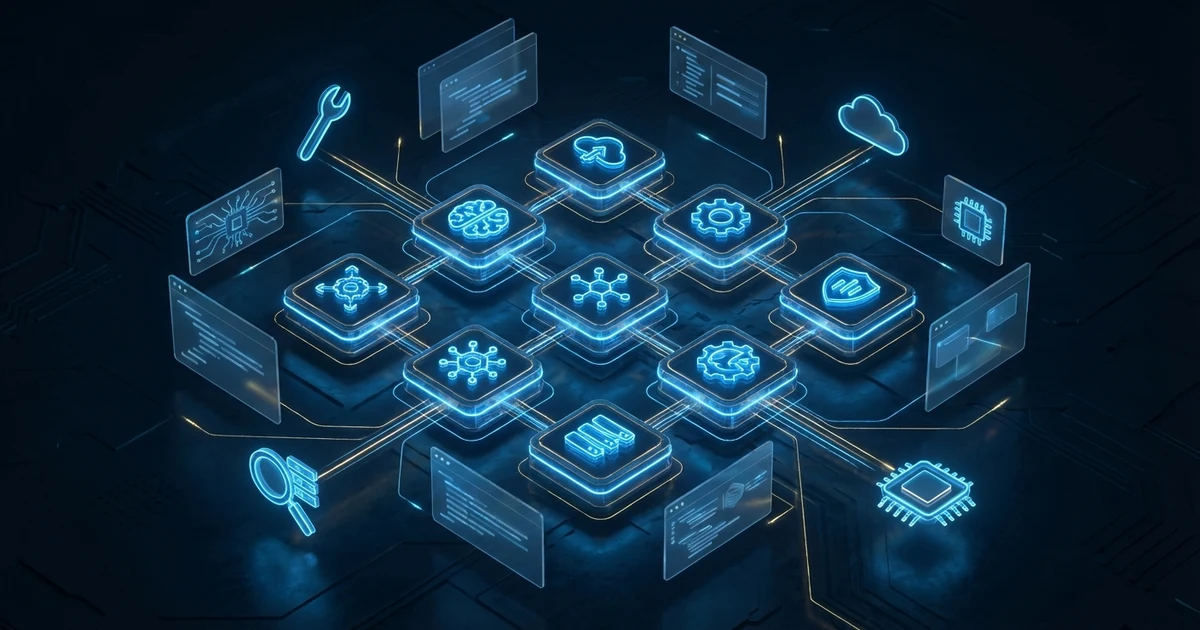
In OpenClaw's architecture, the agent is the most fundamental operational unit. Each agent is composed of four layers:
- Identity Layer: Defined by
agent.md, determining the agent's role, behavioral boundaries, and system instructions - Model Layer: Determines which large language model the agent uses for reasoning, including Primary and Fallback configurations
- Skills Layer: The set of tools and capabilities the agent is permitted to invoke, such as file operations, Shell execution, network requests, etc.
- Workspace Layer: The agent's file system boundary — which directories it can read and write to, and which resources it can access
Understanding these four layers is crucial, because all subsequent configuration operations are essentially configuring these four dimensions.[1]
1.3 When Do You Need to Create Custom Agents?
After OpenClaw is installed, it comes with a default agent. For general tasks — code Q&A, document queries, simple script writing — the default agent is usually sufficient. However, the following scenarios warrant creating custom agents:
- Specialization needs: You need an agent dedicated to database management, one dedicated to code review, and one dedicated to writing technical documentation
- Security isolation: Agents for different projects need to access different sensitive data, requiring Workspace isolation to prevent cross-access
- Model optimization: Some tasks require the deep reasoning capabilities of high-end models (like Claude Opus 4.6), while others only need the fast responses of lightweight models (like Claude Haiku)
- Team collaboration: In multi-person teams, different members need agents with different configurations, or need to share specific agent configuration templates
2. Creating Your First Agent
Now let's get hands-on. We'll use the openclaw agents add command to create an OpenClaw agent from scratch.[5]
2.1 Prerequisites
Before creating an agent, confirm the following conditions are met:
- OpenClaw is installed and initialization is complete (
openclaw onboardhas been run)[4] - At least one model provider's authentication has been configured (e.g., Anthropic API Key)
- The main configuration file
~/.openclaw/openclaw.jsonexists and is properly formatted
You can quickly verify your environment is ready with the following command:
openclaw doctorIf all checks pass (showing green checkmarks), you can start creating agents.
2.2 Using the agents add Command
The core command for creating a new agent is openclaw agents add. The simplest usage only requires an agent name:[5]
openclaw agents add code-reviewerUpon execution, OpenClaw will perform the following actions:
- Create a
code-reviewer/folder under the~/.openclaw/agents/directory - Automatically generate a default
agent.mdidentity file - Inherit the global default model setting (
agents.defaults.model.primary) - Register the agent in
openclaw.json's agent list
If you want to specify the model and working directory at creation time, you can use full parameters:
openclaw agents add code-reviewer \
  --model claude-opus-4-6 \
  --workspace ~/projects/my-app \
  --description "AI agent dedicated to code review"
This single command completes agent creation, model binding, and workspace setup all at once.
2.3 Interactive Creation Flow
If you prefer guided operation, you can run agents add without any parameters:
openclaw agents addThe system will enter interactive mode, asking for the following information step by step:
- Agent name: Must be unique; lowercase English with hyphens is recommended (e.g.,
data-analyst,doc-writer) - Description: A brief explanation to help you identify the agent's purpose later
- Model selection: Choose from the list of authenticated models, or enter a custom model identifier
- Workspace: Specify the agent's default working directory, or use the global default
The interactive flow is especially suitable for beginners, as the system provides default values and explanatory text at each step, reducing the risk of configuration errors.
2.4 Verifying Agent Creation
After the agent is created, use the following command to confirm it has been properly registered:
openclaw agents listYou should see output similar to the following:
Name             Model               Workspace          Status
─────────────────────────────────────────────────────────────────
default          claude-opus-4-6     ~/                 active
code-reviewer    claude-opus-4-6     ~/projects/my-app  ready
data-analyst     claude-sonnet-4-6   ~/data             ready
Where active indicates the currently active agent and ready indicates the agent is configured but not yet launched.[5]
3. agent.md Identity Configuration
If agents add is the agent's "birth," then agent.md is the agent's "soul." This Markdown-format identity file defines how the agent understands its role, how it interacts with users, and within what boundaries it operates.[2]
3.1 Location and Structure of agent.md
Each agent's agent.md is stored in its dedicated directory:
~/.openclaw/agents/code-reviewer/agent.mdA typical agent.md contains the following sections:
# Code Reviewer Agent

## Role
You are a senior software engineer specializing in code quality review.
Your review scope covers: program logic, security vulnerabilities,
performance bottlenecks, maintainability, and naming conventions.

## Behavior Guidelines
- Provide specific, actionable improvement suggestions rather than vague criticism
- Label the severity of each finding: Critical / Warning / Info
- Cite industry best practices (such as OWASP, Clean Code) as supporting evidence
- Provide a summary and overall score (1-10) after the review is complete

## Constraints
- Do not modify the original source code; only provide suggestions
- Do not execute any commands that could affect the production environment
- Review scope is limited to files within the Workspace

## Output Format
Present findings using a Markdown table with columns:
File Path, Line Number, Severity, Issue Description, Improvement Suggestion
3.2 Writing Effective System Prompts
The content of agent.md is injected as the agent's system prompt, so writing quality directly affects agent behavior. Here are several key principles:[2]
- Be specific with role definitions: Instead of "you are an assistant," write "you are a DevOps engineer with ten years of experience, specializing in Kubernetes and CI/CD pipeline design"
- Quantify behavioral guidelines: Instead of "keep answers concise," write "keep each response under 300 words unless the user explicitly requests detailed explanation"
- Be explicit with constraints: Clearly listing what the agent should NOT do is more effective than vaguely describing what it should do
- Standardize output format: A consistent output format makes the agent's responses predictable and easier to integrate downstream
3.3 Dynamic Variables and Template Syntax
OpenClaw's agent.md supports dynamic variable injection, allowing you to reference runtime environment information in the identity configuration:
# Data Analyst Agent

## Context
Current date: {{current_date}}
Working directory: {{workspace_path}}
Agent name: {{agent_name}}

## Role
You are a data analyst responsible for analyzing all data files
in the {{workspace_path}} directory. Analysis results should use
the current date ({{current_date}}) as the report timestamp.
These variables are automatically replaced with actual values when the agent starts, allowing the same agent.md template to be reused across different environments.[2]
3.4 Multilingual Identity Configuration
OpenClaw agent identity configuration fully supports multiple languages. If your use case primarily involves Traditional Chinese, you can write agent.md directly in Chinese:
# Technical Documentation Writer Agent

## Role Definition
You are a technical documentation specialist at Meta Intelligence.
You are responsible for transforming engineering team technical
implementations into clear, structured technical documents.

## Behavioral Norms
- Use standard technical terminology
- Annotate technical terms with their original English when first mentioned
- Keep code blocks in their original language; do not translate variable names
- Every document must include a table of contents, summary, and references
Writing the identity configuration in the agent's target language effectively guides the model to generate more natural, contextually appropriate output.
4. Model Configuration
The model is the agent's "brain." Choosing the right model has a decisive impact on agent performance, cost, and response quality. OpenClaw provides a three-tier model configuration mechanism, from global defaults to per-agent overrides, ensuring maximum flexibility.[3]
4.1 Global Default Model
The global default model is set via agents.defaults.model.primary, applying to all agents without individually specified models:
openclaw config set agents.defaults.model.primary claude-opus-4-6This is the most basic setting. When you create a new agent without specifying the --model parameter, the agent will automatically inherit this global default.[3]
4.2 Fallback Backup Model
In production environments, relying on a single model is risky. API rate limiting, service outages, and provider maintenance windows can all cause agents to suddenly stop working. The Fallback mechanism solves this problem:
openclaw config set agents.defaults.model.fallbacks \
  '["claude-sonnet-4-6", "gpt-4o", "gemini-2.5-pro"]'
When the Primary model is unavailable, the system will sequentially try the models in the Fallback list until it finds the first available one. The entire switching process is transparent to the user, and the agent's conversation will not be interrupted.[3]
4.3 Per-Agent Model Override
Different agents may have vastly different model requirements. An agent performing deep code analysis needs the most powerful reasoning capabilities, while an agent that only handles format checking can do fine with a lightweight model. OpenClaw allows you to override model settings for each agent individually:
openclaw config set agents.code-reviewer.model.primary claude-opus-4-6
openclaw config set agents.format-checker.model.primary claude-haiku-4
Per-Agent settings take precedence over global defaults. That is, if the code-reviewer agent has its own model.primary, it will ignore the agents.defaults.model.primary value.
You can also write the complete model configuration directly in openclaw.json in JSON5 format:
{
  agents: {
    defaults: {
      model: {
        primary: "claude-opus-4-6",
        fallbacks: ["claude-sonnet-4-6", "gpt-4o"]
      }
    },
    "code-reviewer": {
      model: {
        primary: "claude-opus-4-6",
        // Code review requires top reasoning capability, no downgrade
        fallbacks: ["claude-opus-4-6"]
      }
    },
    "quick-helper": {
      model: {
        primary: "claude-haiku-4",
        fallbacks: ["gpt-4o-mini"]
      }
    }
  }
}
4.4 Practical Model Selection Advice
Selecting the appropriate model based on task type is the most commercially valuable optimization in OpenClaw agent configuration. Here are field-tested configuration recommendations:
- Deep reasoning tasks (code review, architecture design, complex analysis): Use Claude Opus 4.6 or equivalent as Primary, with same-tier alternatives as Fallback
- General tasks (document writing, data organization, everyday Q&A): Use Claude Sonnet 4.6 or GPT-4o as Primary for the best cost-performance ratio
- High-frequency, low-complexity tasks (format checking, classification labeling, simple routing): Use Claude Haiku 4 or GPT-4o-mini as Primary to significantly reduce costs
An effective rule of thumb: if the output quality difference between two models is no more than 10%, prefer the lower-cost model.[3]
5. Workspace
Workspace is the core of OpenClaw's agent security model. It defines the file system scope that agents can access and serves as the first line of defense against unauthorized agent operations.[7]
5.1 Default Workspace
If no Workspace is specified for an agent, OpenClaw uses the global default:
openclaw config set agents.defaults.workspace "~/"Setting the default Workspace to the user's home directory (~/) means the agent can access all files under the home directory. This is usually acceptable on personal development machines, but on shared servers, the scope should be narrowed.
5.2 Per-Agent Workspace
Setting an independent Workspace for each agent is a best practice:[1]
openclaw config set agents.code-reviewer.workspace "~/projects/my-app"
openclaw config set agents.data-analyst.workspace "~/data/analytics"
This ensures the code-reviewer agent can only access files under the ~/projects/my-app directory and cannot read data in ~/data/analytics — even if the user asks it to do so in conversation.
5.3 Security Implications of Workspaces
The security implications of Workspaces should not be underestimated. CrowdStrike's research report identifies AI agent file system access permissions as one of the most common security risks.[7] The following points deserve special attention:
- Principle of least privilege: Each agent's Workspace should contain only the minimum set of files needed to complete its tasks
- Secrets isolation: Files containing API keys, passwords, or other secrets (such as
.env) should not appear in any agent's Workspace - Write restrictions: For agents that only need to read data, consider setting the Workspace to read-only mode
- Regular reviews: As projects evolve, previously reasonable Workspace scopes may need adjustment — a quarterly review is recommended
5.4 Multiple Workspace Configuration
In some advanced scenarios, an agent may need to access multiple non-adjacent directories. OpenClaw supports setting multiple Workspace paths for a single agent:
{
  agents: {
    "full-stack-dev": {
      workspace: [
        "~/projects/frontend",
        "~/projects/backend",
        "~/projects/shared-libs"
      ]
    }
  }
}
The agent will be able to access all listed directories but still cannot access paths not included in the list. This is particularly useful in full-stack development scenarios where frontend, backend, and shared libraries are typically in different directory structures.
6. Agent Management Commands
OpenClaw provides a complete set of CLI commands for managing the agent lifecycle.[5]
6.1 Listing All Agents
openclaw agents listThis command displays all registered agents, including name, model, Workspace, and status. You can also use the --verbose flag for more detailed information:
openclaw agents list --verboseVerbose mode additionally shows each agent's Fallback model list, last activity time, cumulative token consumption, and other information.
6.2 Agent Identity Management
To modify an agent's display name, theme color, or emoji and other identity information, use the set-identity command:
openclaw agents set-identity code-reviewerThe system will enter interactive mode, allowing you to configure the agent's identity attributes. Agent routing (which agent handles which messages) is managed through the channel binding mechanism.
6.3 Deleting an Agent
Remove an agent that is no longer needed:
openclaw agents delete code-reviewerThe system will ask for confirmation and prompt whether you need to back up the agent.md and related settings before deletion. The delete operation removes the agent's registration record from openclaw.json and deletes its dedicated directory.
Note: The default agent (default) cannot be deleted — this is a safety design in OpenClaw ensuring the system always has at least one usable agent.[5]
6.4 Agent Identity Updates
If you want to modify an agent's display name or other identity attributes, you can use the set-identity command:
openclaw agents set-identity code-reviewerThis operation enters interactive mode, allowing you to update the agent's name, theme color, emoji, avatar, and other identity information.
6.5 Sharing Agent Configurations
In team collaboration scenarios, you may need to share agent configurations with other members. Currently, OpenClaw does not have built-in export/import functionality; the recommended approach is to directly copy the agent's configuration directory:
# Copy the agent's agent.md and related settings
cp -r ~/.openclaw/agents/code-reviewer/ ~/shared-configs/

# On another machine, create the agent first then overwrite agent.md
openclaw agents add code-reviewer --model claude-opus-4-6
cp ~/shared-configs/code-reviewer/agent.md ~/.openclaw/agents/code-reviewer/
Note: Shared configurations should not include authentication information (API Keys). Ensure no secrets are leaked when sharing configurations.
7. Advanced Configuration
OpenClaw agent basic configuration can satisfy most use cases. However, in production environments or scenarios with high security requirements, you need more granular control.[1]
7.1 Timeout Settings
When agents execute long-running tasks (such as large codebase analysis, complex multi-step workflows), they may encounter timeout issues. OpenClaw allows setting Timeout at both global and Per-Agent levels:
// Global Timeout (in seconds)
openclaw config set agents.defaults.timeout 300

// Per-Agent Timeout
openclaw config set agents.code-reviewer.timeout 600
For agents that need to handle large projects, setting the Timeout to 10 minutes (600 seconds) or more is recommended. The default value is typically 120 seconds, which is sufficient for simple tasks but may be inadequate for deep analysis tasks.
7.2 Allowlist and Blocklist
Through Allowlist and Blocklist, you can precisely control the types of operations an agent can perform:[7]
{
  agents: {
    "code-reviewer": {
      permissions: {
        // Only allow reading files and executing git commands
        allowlist: [
          "file:read",
          "shell:git *"
        ],
        // Explicitly prohibit writing and deleting
        blocklist: [
          "file:write",
          "file:delete",
          "shell:rm *",
          "shell:sudo *"
        ]
      }
    }
  }
}
Blocklist takes precedence over Allowlist. That is, even if an operation appears in the Allowlist, it will be blocked as long as it also appears in the Blocklist. This "default deny, explicit allow" design pattern is an industry best practice for security configuration.
7.3 Auto-Approve Settings
By default, agents will request user confirmation before executing sensitive operations (such as Shell commands, file writes). In trusted environments, you can enable auto-approval for specific agents to improve efficiency:
openclaw config set agents.code-reviewer.autoApprove '["file:read", "shell:git diff *"]'This setting means the code-reviewer agent does not need user confirmation when reading files or executing git diff commands, but other operations still require manual approval.
Security Warning: Unless you fully understand the risks of Auto-Approve, it is not recommended to enable auto-approval for write operations or Shell execution. An agent influenced by a prompt injection attack that has auto-approved write permissions could cause serious security incidents.[7]
7.4 Execution Permissions and Security Sandbox
OpenClaw provides multiple layers of execution permission control:
- Shell execution restrictions: Use
shell.allowlistto limit the Shell command prefixes an agent can execute, such as allowing onlygit,npm,python - Network access control: Use
network.allowlistto limit the network domains an agent can access, preventing data exfiltration - Sandbox mode: In sandbox mode, all of the agent's file operations are performed in a temporary isolated environment. After the conversation ends, changes can be discarded or merged back into the original Workspace
{
  agents: {
    "untrusted-agent": {
      sandbox: true,
      shell: {
        allowlist: ["git", "npm test", "python -m pytest"]
      },
      network: {
        allowlist: ["api.github.com", "registry.npmjs.org"]
      }
    }
  }
}
8. Model Fallback Strategies
Model Fallback is not merely a "backup" mechanism — a well-designed Fallback strategy can achieve optimal balance among cost, latency, and reliability.[3]
8.1 How Fallback Chains Work
When an agent sends an inference request, OpenClaw's model router processes it in the following order:
- Step 1: Try the Primary model. If it responds successfully within 15 seconds, use this result
- Step 2: If the Primary model returns HTTP 429 (rate limited) or 5xx (server error), switch to the first model in the Fallback list
- Step 3: Try each model in the Fallback list sequentially until one succeeds or the list is exhausted
- Step 4: If all models are unavailable, report an error to the user and suggest retrying later
Note that Fallback switching only occurs for model-level errors (such as API unavailability). If the Primary model responds successfully but with poor content quality, Fallback will not be triggered — quality control needs to be handled through other mechanisms (such as Evaluation Hooks).
8.2 Cost Optimization Strategies
The model ordering in the Fallback chain directly affects cost. A common strategy is to arrange them "from strongest to weakest":
// Strategy A: Quality-first
{
  model: {
    primary: "claude-opus-4-6",        // Strongest reasoning
    fallbacks: ["claude-sonnet-4-6", "gpt-4o"]  // Gradual downgrade
  }
}

// Strategy B: Cost-first
{
  model: {
    primary: "claude-sonnet-4-6",      // Best cost-performance ratio
    fallbacks: ["gpt-4o", "claude-haiku-4"]  // Progressively lower cost
  }
}
In production environments, most teams choose Strategy B — using a mid-tier model as Primary and reserving high-end model budgets for agents that truly require deep reasoning. Based on real-world data, this configuration can reduce overall token costs by 35-50%, while output quality degradation typically does not exceed 5-8%.[3]
8.3 Latency Considerations
Fallback switching is not instantaneous — each switch introduces at least one full API round-trip latency (typically 1-3 seconds). If the Fallback chain is long (e.g., 4-5 backup models), the worst-case scenario could have users waiting 10-15 seconds for a response.
To control latency, it is recommended to:
- Keep the Fallback list to 2-3 models
- Choose backup models in the same region as the Primary model to reduce network latency
- For latency-sensitive application scenarios, consider setting
fallbackTimeoutto limit the wait time for each backup model
openclaw config set agents.defaults.model.fallbackTimeout 10This setting means each Fallback model will wait a maximum of 10 seconds before trying the next one.
8.4 Cross-Provider Fallback
One of OpenClaw's major advantages is model agnosticism. You can mix models from different providers in the Fallback chain, achieving provider-level fault tolerance:
{
  model: {
    primary: "claude-opus-4-6",          // Anthropic
    fallbacks: [
      "gpt-4o",                          // OpenAI
      "gemini-2.5-pro",                  // Google
      "claude-sonnet-4-6"               // Anthropic (different model)
    ]
  }
}
This ensures that even if an entire provider's service goes down, the agent can continue operating through models from other providers. For mission-critical business applications, cross-provider Fallback is a non-negotiable configuration.[3]
9. Practical Example: Complete Agent Configuration Workflow
To tie all the preceding concepts together, here is a complete practical example — setting up three specialized agents for a software development team.
9.1 Scenario Description
Your team is developing a full-stack web application and needs three roles:
- Architect agent: Responsible for system design decisions and technology selection
- Developer agent: Responsible for code writing and implementation
- Reviewer agent: Responsible for code quality review and security scanning
9.2 Step-by-Step Setup
First, create the three agents:
openclaw agents add architect \
  --model claude-opus-4-6 \
  --workspace ~/projects/my-app \
  --description "System architect — responsible for design decisions and technology selection"

openclaw agents add developer \
  --model claude-sonnet-4-6 \
  --workspace ~/projects/my-app \
  --description "Full-stack developer — responsible for code implementation"

openclaw agents add reviewer \
  --model claude-opus-4-6 \
  --workspace ~/projects/my-app \
  --description "Code reviewer — responsible for quality assurance and security scanning"
Next, set permission restrictions for the reviewer agent to ensure it does not directly modify code:
openclaw config set agents.reviewer.permissions.blocklist \
  '["file:write", "file:delete", "shell:rm *"]'
Finally, set auto-approval for common operations on the developer agent to improve development efficiency:
openclaw config set agents.developer.autoApprove \
  '["file:read", "file:write", "shell:npm *", "shell:git *"]'
9.3 Complete openclaw.json Configuration
After completing the above setup, the agent-related section of openclaw.json looks similar to the following:
{
  agents: {
    defaults: {
      model: {
        primary: "claude-sonnet-4-6",
        fallbacks: ["gpt-4o", "claude-haiku-4"]
      },
      workspace: "~/",
      timeout: 180
    },
    architect: {
      model: {
        primary: "claude-opus-4-6",
        fallbacks: ["gpt-4o", "gemini-2.5-pro"]
      },
      workspace: "~/projects/my-app",
      timeout: 600
    },
    developer: {
      model: {
        primary: "claude-sonnet-4-6",
        fallbacks: ["gpt-4o"]
      },
      workspace: "~/projects/my-app",
      autoApprove: ["file:read", "file:write", "shell:npm *", "shell:git *"]
    },
    reviewer: {
      model: {
        primary: "claude-opus-4-6",
        fallbacks: ["claude-opus-4-6"]
      },
      workspace: "~/projects/my-app",
      permissions: {
        blocklist: ["file:write", "file:delete", "shell:rm *"]
      }
    }
  }
}
10. Frequently Asked Questions (FAQ)
Q1: Can I modify an agent's name after creation?
Yes. Use the openclaw agents set-identity <agent-name> command to update an agent's display name and other identity attributes. If you need a complete rebuild, you can delete and recreate with a new name.[5]
Q2: Is there a limit on the number of agents?
OpenClaw itself has no hard limit on the number of agents. However, each agent occupies some disk space (primarily agent.md and history records), and managing too many agents increases cognitive overhead. In practice, it is recommended that a single user maintain no more than 10-15 active agents. Beyond this number, consider using Agent Teams for group management.[1]
Q3: How do I share agent.md templates between agents?
Currently, OpenClaw does not have a built-in template sharing mechanism. The recommended approach is to store commonly used agent.md templates in a version control system (such as Git), and after creating a new agent, manually copy or use agents import to import them. Some community developers have also created public agent.md template repositories that can be directly referenced.
Q4: Per-Agent model settings override the global default, but are Fallbacks also overridden?
Yes. Per-Agent model settings are a "complete override," not a "merge." If you set model.primary for a specific agent but do not set model.fallbacks, that agent will have no Fallback model (it will not inherit the global default Fallback list). Therefore, it is recommended to set both Primary and Fallback when overriding model settings.[3]
Q5: Can Workspace be set to a network path (such as an NFS mount point)?
Technically feasible, but not recommended. OpenClaw's file operations assume local file system latency characteristics, and network file systems may cause unexpected timeouts or performance issues. If you must use network storage, it is recommended to appropriately increase the Timeout value and remind the agent in agent.md to avoid frequent small file read/write operations.
Q6: After deleting an agent, can its conversation history be recovered?
No. openclaw agents delete removes all data for the agent, including conversation history. If you might need these records, manually back up the ~/.openclaw/agents/<agent-name>/ directory before deletion.[5]
Q7: How do I make an agent automatically load specific context files on startup?
In agent.md, you can use the {{file:path/to/context.md}} syntax to include the contents of external files. These files are read and injected into the system prompt when the agent starts. Note that included file paths are relative to the agent's Workspace root directory.[2]
Q8: Which model providers does OpenClaw support?
As of February 2026, OpenClaw officially supports Anthropic (Claude series), OpenAI (GPT series), Google (Gemini series), Mistral, Cohere, and other major providers. Additionally, through the OpenAI-compatible API format, you can also connect self-hosted open-source models (such as Llama, Qwen, etc.).[3]
Q9: Does the autoApprove setting support regular expressions?
Currently, glob-style pattern matching is supported (e.g., shell:git *), but full regular expressions are not supported. If you need more complex matching logic, it is recommended to use Blocklist for reverse control — first allow a broad category of operations, then use Blocklist to exclude specific dangerous operations.
Q10: How do I monitor an agent's token consumption?
Use openclaw gateway usage-cost to view Gateway-level usage cost statistics. For more granular monitoring, it is recommended to combine OpenClaw's Webhook functionality to send token consumption events to external monitoring platforms (such as Grafana or Datadog).[1]