Haven't installed OpenClaw yet? Click here for one-line install commands
curl -fsSL https://openclaw.ai/install.sh | bashiwr -useb https://openclaw.ai/install.ps1 | iexcurl -fsSL https://openclaw.ai/install.cmd -o install.cmd && install.cmd && del install.cmd- Discord has over 200 million monthly active users and is the go-to communication platform for gaming, open-source projects, and tech communities -- integrating with OpenClaw allows AI agents to respond to member questions, execute automated tasks, and manage communities directly in server channels[6]
- The complete integration process covers five major steps: create a Discord Application -> create a Bot and obtain Token -> configure Gateway Intents -> write Token to OpenClaw -> complete Pairing verification, taking approximately 15-20 minutes total[1][2]
- Gateway Intents are the core permission mechanism of Discord Bots -- you must enable the correct Intents on both the Developer Portal and OpenClaw sides simultaneously for the Bot to read message content and member information[3]
- Through OpenClaw's
groupPolicycombined with Discord's role permission system, administrators can precisely control which channels allow AI agent responses and which members can trigger commands, achieving enterprise-grade access control[7] - Slash Commands and interactive components (Buttons, Select Menus) allow community members to drive the AI agent through complex workflows via a graphical interface without memorizing any command syntax[9]
I. Why Choose Discord x OpenClaw?
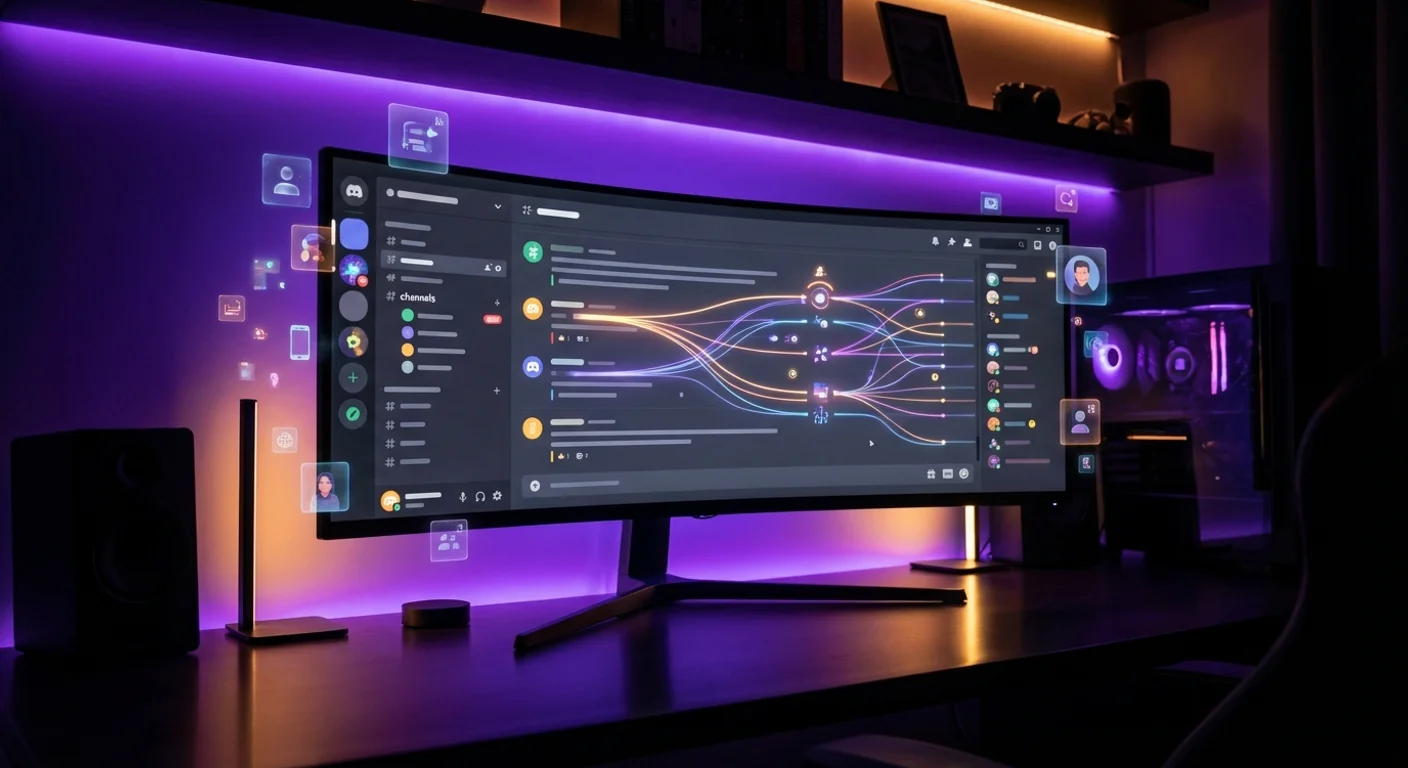
Discord has evolved from an early gaming voice tool into a comprehensive communication platform covering open-source communities, educational teams, internal corporate collaboration, and the creator economy. According to Discord's 2025 Transparency Report, the platform surpassed 200 million monthly active users with over 4 billion daily messages.[6] For teams managing tech communities, open-source projects, or learning organizations, Discord is indispensable infrastructure.
After embedding an OpenClaw AI agent into a Discord server, your community gains the following capabilities:[8]
- Real-time AI Q&A: Members @mention the agent in a channel to get AI responses -- no need to leave Discord or switch to other AI tools
- Multi-channel differentiated deployment: Deploy a general Q&A agent in #general, a code review agent in #dev-help, and a content moderation agent in #moderation
- Thread and Forum support: The agent can maintain context-coherent multi-turn conversations in Threads and Forum Posts
- Role permission integration: Deep integration with Discord's native Role system, allowing admins to control AI agent access scope by role
- Rich Embed replies: Agent replies support Discord Embed format -- with titles, descriptions, fields, color bars, and thumbnails for more structured information presentation
Compared to Telegram's personal remote control scenario or Slack's enterprise workflow scenario, the Discord x OpenClaw integration is best suited for community management, open-source project support, and large-scale multi-user interaction. Below is the complete integration process from scratch.
II. Prerequisites
Before starting the OpenClaw Discord setup, confirm the following environments and permissions are ready:[4]
2.1 Discord Requirements
- Discord account: Used to log in to the Discord Developer Portal
- Discord server: You need a server where you have "Manage Server" permissions (or create a new test server)
- Developer mode: Recommended to enable "Developer Mode" in Discord Settings -> Advanced, making it easy to copy channel IDs and user IDs
2.2 OpenClaw Requirements
- OpenClaw installed: If not yet installed, refer to the one-line install commands at the top of this article or read the "Architecture Analysis and Hands-On Deployment Guide"
- Gateway running: Discord integration requires the OpenClaw Gateway to run continuously to maintain the WebSocket connection[5]
- At least one AI agent configured: Confirm you've completed the agent's basic configuration (model selection, System Prompt, etc.)
Check Gateway status:
openclaw gateway statusIf the Gateway isn't running yet:
openclaw gateway start2.3 Network Requirements
Discord Bot uses WebSocket to maintain a persistent connection with Discord servers. OpenClaw Gateway only needs outbound HTTPS (443) connections to operate -- no inbound port opening or public IP address required. This means Discord integration works just as well behind firewalls or NAT environments.[5]
III. Step 1: Create a Discord Bot and Obtain Token
This is the foundation of the entire OpenClaw Discord setup process -- creating an Application and Bot on the Discord Developer Portal and obtaining the necessary authentication Token.[2]
3.1 Create a Discord Application
- Go to discord.com/developers/applications
- Click "New Application" in the upper right corner
- Enter the Application name (e.g.,
OpenClaw Agent) -- this name will be displayed as the Bot's default username - Check to agree to Discord Developer Terms of Service and click "Create"
After creation, you'll be on the Application's General Information page. Note the Application ID (needed later when inviting the Bot).
3.2 Create Bot and Obtain Token
- Click "Bot" in the left menu
- If no Bot has been created yet, click "Add Bot" -> "Yes, do it!"
- After Bot creation, click "Reset Token" to generate a new Bot Token
- Copy the generated Token and store it securely
Bot Token format looks like:
MTIzNDU2Nzg5MDEyMzQ1Njc4OQ.G1a2B3.AbCdEfGhIjKlMnOpQrStUvWxYz1234567890Important security reminder: The Bot Token is equivalent to full access credentials for the Bot -- anyone who has it can control your Bot. Never expose the Token in public places (GitHub, Discord channels, screenshots). If the Token is accidentally leaked, immediately Reset Token in the Developer Portal.[7]
3.3 Configure Bot Options
On the Bot page, several important options need to be configured:
| Option | Recommended Setting | Description |
|---|---|---|
| Public Bot | Off | When off, only you (Application Owner) can invite the Bot to servers. Prevents others from adding your AI Bot to other servers without authorization |
| Requires OAuth2 Code Grant | Off | OpenClaw doesn't need OAuth2 authorization flow, keep it off |
| Message Content Intent | On | Must be enabled, otherwise Bot cannot read message content (details in Section V on Gateway Intents) |
| Server Members Intent | Enable as needed | Required if your agent needs to query member information or implement role permission checks |
| Presence Intent | Off | Keep off unless your agent needs to sense member online/offline status, to save resources |
3.4 Invite Bot to Server
Click "OAuth2" -> "URL Generator" in the left menu:
- In the Scopes section, check
botandapplications.commands - In the Bot Permissions section, check the following permissions:
| Permission | Purpose | Required |
|---|---|---|
Send Messages | Agent sends replies in channels | Required |
Send Messages in Threads | Agent replies in threads | Required |
Read Message History | Read channel message history for context | Required |
View Channels | See the channel list in the server | Required |
Embed Links | Send Rich Embed formatted replies | Recommended |
Attach Files | Agent uploads files to channels | Optional |
Add Reactions | Agent adds emoji reactions to messages | Optional |
Use Slash Commands | Register and respond to Slash Commands | Recommended |
Manage Threads | Create, archive, and manage threads | Optional |
Create Public Threads | Create public threads | Optional |
Manage Messages | Agent deletes or pins messages (for content moderation) | Advanced |
- An invite URL will be generated at the bottom of the page -- copy it and open it in a browser
- Select the server where you want to add the Bot and click "Authorize"
After authorization, the Bot member will appear in your Discord server (offline by default, coming online once OpenClaw Gateway starts).
IV. Step 2: OpenClaw-Side Configuration (config set)
After obtaining the Discord Bot Token, the next step is to write it into OpenClaw's configuration so the Gateway can connect to Discord as your Bot.[1]
4.1 Set Bot Token
openclaw config set channels.discord.botToken "YOUR_DISCORD_BOT_TOKEN"4.2 Enable Discord Channel
openclaw config set channels.discord.enabled true4.3 Set Application ID (Optional)
Some advanced features (such as Slash Commands auto-registration) require the Application ID:
openclaw config set channels.discord.applicationId "YOUR_APPLICATION_ID"4.4 Set Guild ID (Optional, Recommended for Development)
During development, you can specify a single server's Guild ID so Slash Commands are only registered in that server (taking effect immediately, no need to wait for global propagation):
openclaw config set channels.discord.guildId "YOUR_GUILD_ID"Tip: With Discord Developer Mode enabled, right-click on the server name -> "Copy Server ID" to get the Guild ID.
4.5 Verify Configuration
Use the following command to confirm all Discord-related settings were written correctly:
openclaw config get channels.discordExpected output:
{
"enabled": true,
"botToken": "MTIz****",
"applicationId": "1234567890123456789",
"guildId": "9876543210987654321"
}
4.6 Restart Gateway and Verify Connection
openclaw gateway restartWatch Gateway logs to confirm Discord connection success:
openclaw logs --follow --limit 20If you see a message like [discord] Bot connected as OpenClaw Agent#1234, the Bot has successfully come online. At this point, go back to Discord and you should see the Bot's status change from offline to online.
4.7 Complete Pairing
After the Bot comes online, you still need to complete Pairing verification -- this is OpenClaw's security mechanism ensuring only authorized users can control the agent.[10]
- Send a direct message (DM) to your Bot in Discord
- The Bot will reply with "Pairing Required" and display a pairing code
- Execute in terminal:
# View pending pairing devices
openclaw pairing list

# Approve pairing
openclaw pairing approve
Once pairing is complete, you can interact normally with the AI agent in Discord.
V. Gateway Intents Configuration
Gateway Intents are the core permission mechanism of the Discord API, determining what types of event data the Bot can receive. This is the most error-prone part of the OpenClaw Discord setup -- you must enable the corresponding Intents on both the Discord Developer Portal and OpenClaw configuration simultaneously, otherwise the Bot won't be able to receive messages.[3]
5.1 Intent Types Overview
Discord divides Intents into two categories:
| Type | Description | Requires Application |
|---|---|---|
| Standard Intents | Basic events (channel create/delete, role changes, etc.), all enabled by default | No |
| Privileged Intents | Sensitive data (message content, member lists, online status), must be manually enabled | Yes, when Bot is in 100+ servers, must apply to Discord |
OpenClaw's Discord Bot typically needs the following Privileged Intents:
| Intent | Function | Required |
|---|---|---|
MESSAGE_CONTENT | Read the actual text content of messages. Without this, Bot can only receive message events but cannot read content | Required |
GUILD_MEMBERS | Get complete member lists and member join/leave events | Needed for role permission control |
GUILD_PRESENCES | Get member online/offline/busy status | Optional |
5.2 Enable Privileged Intents in Developer Portal
- Go to Developer Portal -> Select your Application -> Click "Bot" in left menu
- Scroll down to the "Privileged Gateway Intents" section
- Enable Message Content Intent (required)
- Enable Server Members Intent and Presence Intent as needed
- Click "Save Changes"
5.3 Configure Intents on the OpenClaw Side
OpenClaw allows you to precisely specify needed Intents via config:[1]
# Enable MESSAGE_CONTENT Intent (required)
openclaw config set channels.discord.intents.messageContent true

# Enable GUILD_MEMBERS Intent (needed for role permission control)
openclaw config set channels.discord.intents.guildMembers true

# Enable GUILD_PRESENCES Intent (usually not needed)
openclaw config set channels.discord.intents.guildPresences false
Restart Gateway after configuration:
openclaw gateway restartCommon error: If you enabled a Privileged Intent in the Developer Portal but didn't sync it in the OpenClaw configuration (or vice versa), Gateway logs will show a Disallowed intents error. Ensure both sides are configured consistently.
VI. Channel Permissions and Group Policy (allowlist / denylist)
In large communities, you typically don't want the AI agent to respond in every channel -- this creates information noise and increases computational costs. OpenClaw provides a fine-grained groupPolicy mechanism to precisely control the agent's response scope.[7]
6.1 DM Policy
Controls who can interact with the agent via Discord direct messages:[1]
- owner_only (default): Only paired owners can use it
- allowlist: Only whitelisted Discord users can use it
- anyone: Anyone can DM the agent (never use in production -- this lets any Discord user control your computer)
openclaw config set channels.discord.dmPolicy "owner_only"6.2 Group Policy (Server Channel Policy)
This is the core configuration for OpenClaw Discord groupPolicy -- determining the agent's response scope in the server:
| Policy | Behavior | Use Case |
|---|---|---|
allowlist | Agent responds only in whitelisted channels | Large communities -- restrict agent to specific channels (e.g., #ai-help) |
denylist | Agent responds in all channels except blacklisted ones | Small servers -- only exclude a few inappropriate channels (e.g., #off-topic) |
all | Agent responds in all channels | Dedicated server -- all channels need AI support |
none | Agent doesn't respond in any channel (responds only to DMs and Slash Commands) | Slash Commands-only mode |
# Set Group Policy to allowlist mode
openclaw config set channels.discord.groupPolicy "allowlist"

# Add allowed channel IDs
openclaw config set channels.discord.allowedChannels '["1234567890123456789", "9876543210987654321"]'
If using denylist mode:
openclaw config set channels.discord.groupPolicy "denylist"
openclaw config set channels.discord.deniedChannels '["1111111111111111111"]'
6.3 Combining with Discord Role Permissions
Beyond OpenClaw's own groupPolicy, you should also leverage Discord's native role permission system to strengthen security:
- Create a dedicated role: Create an
@AI Agentrole for the Bot - Channel permission overrides: In channels where you don't want the agent to respond, set "Send Messages = Deny" for the
@AI Agentrole - Layered control: OpenClaw groupPolicy controls whether the agent processes messages in a channel, while Discord role permissions control whether the agent can send messages in that channel -- two layers of protection ensure security
6.4 User-Level Access Control
OpenClaw's allowlist can control not just channels but also users:
# Set only specific users to trigger the agent
openclaw config set channels.discord.allowedUsers '["USER_ID_1", "USER_ID_2"]'
Combined with Discord roles, you can implement more flexible policies -- for example, only allowing members with the @AI User role to interact with the agent.
VII. Slash Commands and Interactive Components
Discord's Slash Commands let users interact with Bots via /-prefixed commands, providing auto-completion, parameter hints, and graphical interfaces that significantly lower the barrier to entry.[9]
7.1 OpenClaw Default Slash Commands
OpenClaw automatically registers a set of default Slash Commands when Discord integration is enabled:
| Command | Function | Description |
|---|---|---|
/ask | Ask the AI agent a question | Supports a question parameter to send questions directly to the agent |
/status | Query agent status | Reports whether the agent is online, current model, response latency, etc. |
/clear | Clear conversation history | Resets the agent's conversation context |
/model | Switch AI model | Switch between available LLMs (e.g., from GPT-4o to Claude Sonnet) |
/help | Show available commands | Lists all available Slash Commands with descriptions |
7.2 Custom Slash Commands
You can define custom Slash Commands through OpenClaw's Skill system:
# Define custom commands in the agent's Skill configuration
openclaw config set agents.default.skills.discord.commands '[
{
  "name": "summarize",
  "description": "Summarize recent conversations in a specified channel",
  "options": [
    {
      "name": "channel",
      "type": "CHANNEL",
      "description": "Channel to summarize",
      "required": true
    },
    {
      "name": "count",
      "type": "INTEGER",
      "description": "Number of messages to summarize (default 50)",
      "required": false
    }
  ]
},
{
  "name": "report",
  "description": "Generate community activity report",
  "options": [
    {
      "name": "period",
      "type": "STRING",
      "description": "Report period",
      "required": true,
      "choices": [
        {"name": "Today", "value": "today"},
        {"name": "This Week", "value": "week"},
        {"name": "This Month", "value": "month"}
      ]
    }
  ]
}
]'
7.3 Interactive Components (Buttons and Select Menus)
OpenClaw's Discord integration supports Interactive Components, allowing agent replies to include clickable buttons and dropdown menus:
- Confirm / Cancel buttons: When the agent is about to perform a sensitive operation, it first sends confirmation buttons for the user to double-confirm
- Select Menu: Provides multiple options for users to choose from -- such as a "Select deployment environment" dropdown
- Pagination buttons: Long replies are automatically paginated, with users browsing via "Previous / Next" buttons
These interactive components evolve the Discord AI Bot experience from "typing commands" to "graphical operations," particularly suitable for non-technical community members.[9]
VIII. Thread and Forum Management
Discord's Threads and Forum Channels are core features for managing long-term conversations and topic-based discussions. OpenClaw agents can maintain context-coherent multi-turn conversations in both scenarios.[1]
8.1 Conversations in Threads
When a user @mentions the agent in a Thread, the agent automatically reads the entire Thread's message history as context, not just the latest message. This allows the agent to:
- Understand the discussion context from earlier in the Thread
- Reply with answers consistent with previous responses
- Track multi-step problem-solving processes
8.2 Auto-Creating Threads
You can configure the agent to automatically wrap each conversation in a Thread in specific channels, preventing the main channel from being flooded with AI replies:
openclaw config set channels.discord.autoThread true
openclaw config set channels.discord.autoThreadChannels '["1234567890123456789"]'
When enabled, when a user @mentions the agent in a specified channel, the agent automatically creates a new Thread and replies within it. Subsequent conversation continues in this Thread, keeping the main channel clean.
8.3 Forum Channel Integration
Forum Channels are a Discord channel type specifically designed for structured discussions. OpenClaw agents can:
- Auto-reply to new Posts: When someone creates a new post in the Forum, the agent automatically provides an initial reply or classification
- Tag management: Automatically add Forum Tags based on post content (e.g., "Answered," "Needs Human Review")
- Knowledge base search: When users ask questions, the agent first searches for similar existing questions in the Forum to avoid duplicate answers
# Enable Forum auto-reply
openclaw config set channels.discord.forumAutoReply true

# Set auto-reply Forum channels
openclaw config set channels.discord.forumChannels '["FORUM_CHANNEL_ID"]'
IX. Large Community Management Strategies
When your Discord server grows to thousands or even tens of thousands of members, AI agent management strategies need to scale accordingly. Here are best practices for large communities:
9.1 Multi-Agent Deployment
A single agent can't meet the diverse needs of large communities. Deploy multiple specialized agents, each responsible for different functions:[5]
- Q&A Agent (#faq / #help): Specializes in answering community FAQs, paired with a RAG vector knowledge base
- Moderation Agent (#moderation-log): Monitors message content, automatically flags or removes violations
- Welcome Agent (#welcome): Detects new member joins, automatically sends welcome messages and server guides
- Analytics Agent (#analytics): Periodically generates community activity reports, tracking member interaction trends
Each agent uses an independent Discord Bot, configured in OpenClaw with its own Agent Profile and System Prompt.
9.2 Rate Limiting and Anti-Abuse
In large communities, users will inevitably try to abuse the AI agent. OpenClaw provides the following protection mechanisms:
# Maximum 5 messages per user per minute
openclaw config set channels.discord.rateLimit.perUser 5

# Maximum 20 replies per channel per minute
openclaw config set channels.discord.rateLimit.perChannel 20

# Response message when limit is exceeded
openclaw config set channels.discord.rateLimit.message "Please wait and try again, maximum 5 messages per minute."
9.3 Cost Control
Every AI reply involves LLM API call costs. In large communities, the following strategies help control expenses:
- Model tiering: Use lightweight models (like GPT-4o Mini or Haiku) for simple questions; trigger powerful models only for complex ones
- Caching mechanism: Enable response caching for high-frequency repeated questions
- @mention trigger: Configure the agent to respond only when @mentioned, rather than monitoring all messages
- Token limit: Limit the maximum Token count per reply
# Set agent to respond only when @mentioned
openclaw config set channels.discord.triggerMode "mention"

# Limit maximum Tokens per reply
openclaw config set channels.discord.maxResponseTokens 1024
X. Troubleshooting
Below are the most common issues and solutions for OpenClaw Discord integration:
| Issue | Cause | Solution |
|---|---|---|
| Bot shows offline in server | Gateway not running or Bot Token incorrect | Run openclaw gateway status to confirm Gateway is running; check Token was copied correctly (no extra spaces) |
| Bot online but not responding to messages | Message Content Intent not enabled | Confirm both Developer Portal and OpenClaw settings have MESSAGE_CONTENT Intent enabled |
Gateway logs show Disallowed intents | Intent settings inconsistent between Developer Portal and OpenClaw | Compare both sides' settings, ensure they're identical, then restart Gateway |
| Bot only responds in some channels | groupPolicy or Discord role permission restrictions | Check openclaw config get channels.discord.groupPolicy; confirm Bot role has Send Messages permission in target channels |
| Slash Commands don't appear | Didn't check applications.commands Scope or didn't set Application ID | Confirm OAuth2 URL includes applications.commands; set correct applicationId |
| "Pairing Required" keeps appearing | Pairing not completed or expired | Re-execute openclaw pairing approve[10] |
| Replies get truncated | Discord single message character limit is 2000 | OpenClaw auto-splits long replies; if still an issue, reduce maxResponseTokens |
| Reply delay exceeds 30 seconds | LLM response slow or model too heavy | Switch to a faster model; check Gateway server network latency |
| Reply format issues with certain languages | Model has no language preference set | Add "Please reply in English" to the agent's System Prompt |
| Bot can't reply in Threads | Missing Send Messages in Threads permission | Check this permission in OAuth2 URL, re-invite Bot |
XI. Security Best Practices
Exposing an AI agent to a community environment through Discord makes security the most critical concern. The following are essential security principles:[7][8]
11.1 Token Security
- Never expose Bot Token in code or Discord channels: The Token equals full access to the Bot
- Use environment variables: In CI/CD or deployment environments, use environment variables instead of plaintext Token storage
- Rotate Tokens regularly: Recommended every 90 days or immediately after any security incident, Reset Token in Developer Portal
- Enable MFA: Ensure your Discord account has two-factor authentication enabled to prevent Token leakage from account compromise
11.2 Principle of Least Privilege
- Only grant necessary Bot Permissions: If the agent doesn't need to delete messages, don't grant
Manage Messagespermission - Only enable necessary Intents: If member info isn't needed, don't enable
GUILD_MEMBERSIntent - Turn off Public Bot: Unless you have a clear reason, always keep Public Bot off
- Restrict Skill permissions: If the agent on Discord only needs to answer questions, don't install Skills with file modification or Shell execution permissions
11.3 Group Access Control
- Default to allowlist mode: Explicitly specify which channels the agent can respond in, rather than letting it be active in all channels
- User whitelist: In sensitive environments, restrict only specific Discord users from interacting with the agent
- Regular audits: Use
openclaw pairing listto regularly check paired devices and users, removing access no longer needed[10]
11.4 Prompt Injection Protection
In public communities, malicious users may attempt to manipulate agent behavior through carefully crafted messages (Prompt Injection). Protective measures include:
- Adding explicit security boundary instructions in the System Prompt
- Enabling OpenClaw's Guardrails feature to filter sensitive operation requests
- Restricting the Skill range the agent can execute in the Discord environment -- e.g., prohibiting Shell execution and file operations
- Logging all agent interactions for post-hoc auditing
11.5 Monitoring and Alerts
# Enable Discord channel operation logging
openclaw config set channels.discord.logging true

# Set abnormal behavior alert threshold
openclaw config set channels.discord.alertThreshold.messagesPerMinute 50
When abnormally high-frequency agent calls are detected (possibly abuse or an attack), OpenClaw will automatically pause responses and notify administrators.
Conclusion
The integration of Discord and OpenClaw extends the AI agent from a personal terminal tool to community-level shared intelligence -- not only answering member questions in real-time but also executing automated management, content moderation, and data analysis tasks.[8] The complete OpenClaw Discord setup process covers Bot creation, Token and Gateway Intents configuration, groupPolicy channel permissions, and Slash Commands deployment, taking approximately 15-20 minutes.
For teams managing open-source projects or tech communities, this integration can significantly reduce the human workload of community management -- letting the AI agent handle repetitive Q&A and moderation work while community managers focus on high-value interactions requiring human judgment.
If you haven't installed OpenClaw yet, we recommend first reading the "Architecture Analysis and Hands-On Deployment Guide" to complete the basic deployment. If you need to integrate multiple communication platforms simultaneously, refer to the "Platform Integration Complete Guide" for Telegram, Slack, LINE, and other channel configurations. For Slack enterprise workflow scenarios, see the "Slack Workspace Integration Complete Guide".
For consulting on Discord community AI deployment or enterprise-grade customization solutions, feel free to contact us.